iPhone Lock Screen widget ideas: ten setups
A good Lock Screen answers one question without opening the phone. Pick the question first, then the widgets: next meeting, today's tasks, battery, weather or a pet. Below are ten ready setups with four small slots, one inline line and a short reason for each.
Coming soon to iPhone
How should I plan a Lock Screen?
The space is small: one inline line above the clock and four small slots below, or two wide ones. Start with the question you ask the phone most. If it is "what is next today", the calendar goes first. If it is "how long will the battery last", the battery goes first. Add the rest by rank until the slots are full.
To add them, follow the steps in how to add widgets to the iPhone Lock Screen.
Which ten setups are worth trying?
| Setup | Inline line | Slots below the clock |
|---|---|---|
| Work day | Next calendar event | Tasks due, battery, weather, timer |
| Study | Next class | Timer, tasks, battery, notes |
| Sleep | Alarm time | Alarm, battery, Focus, pet mood |
| Travel | Flight or transit | Clock in two zones, weather, battery, maps |
| Fitness | Steps or ring | Activity rings, heart rate, weather, music |
| Parent | Next event | Shared list, weather, battery, reminders |
| Commute | Transit time | Weather, battery, media, reminders |
| Minimal | Date | One circular battery only |
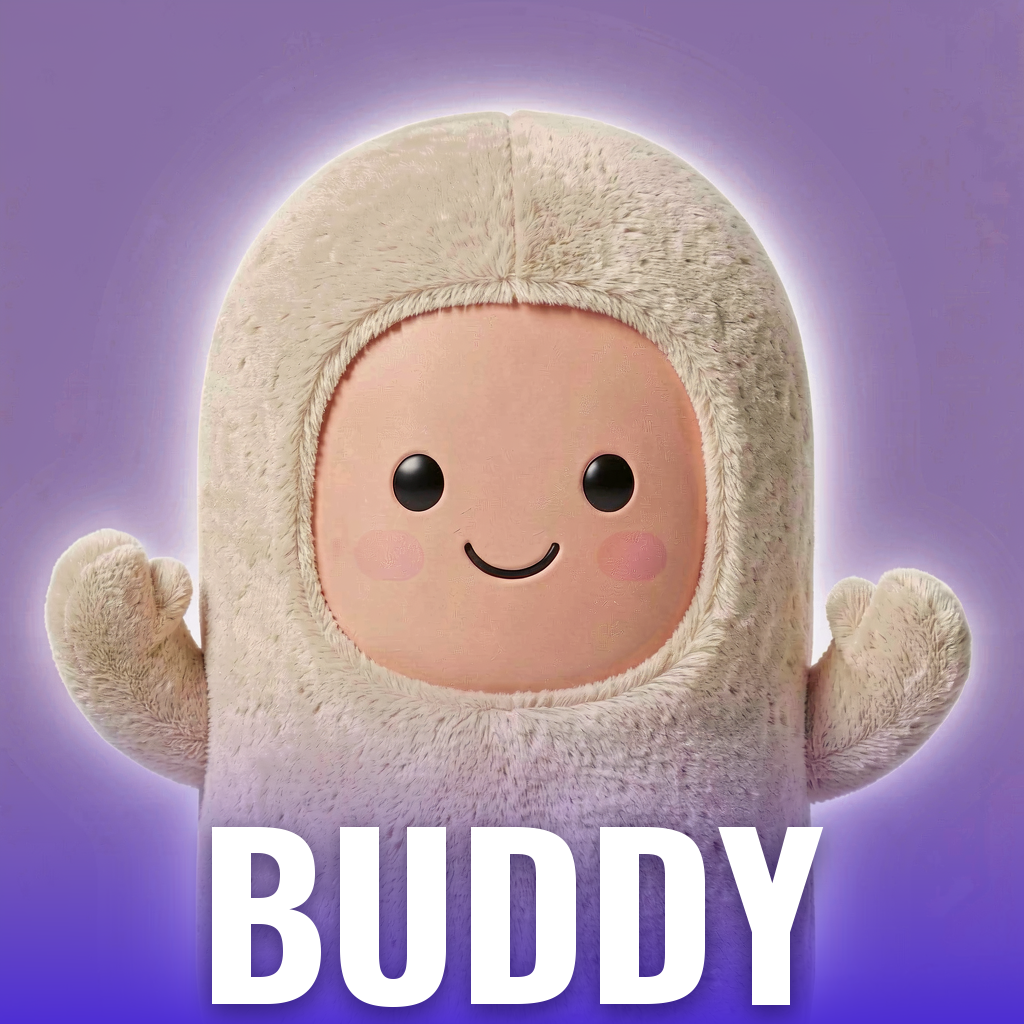
| Pet | Buddy count | Buddy face, tasks, battery, weather |
| Creative | Moon phase or quote | Notes, timer, battery, music |
What does the work-day setup look like?
The inline line shows the next event, so a glance tells you whether to hurry. Under the clock, put a tasks-due count, the battery, the weather and a timer. Skip social apps. You want a screen that helps you leave the house and then tells you what is next, not one that invites a scroll.
What does the sleep setup need?
Link a Lock Screen to a sleep Focus so it appears at night. Use a dark wallpaper, an alarm widget, a battery circle and a calm widget such as a pet face. The point is to see the alarm time and nothing else. Notifications are quiet in the Focus, so the screen can stay simple.
How would a task or pet widget fit in?
Both fit into one slot. Musse Buddy has a circular widget with the buddy's face and mood, a rectangular one with the last mission, and an inline one with a count of missions that need your OK. Tapping any of them opens the app ready to listen. If you do not want others to read your last request, use the circular or inline version, which hide the title.
For the full list of shapes, see widgets and Live Activity.
What does the study setup look like?
Students need the next class, a countdown and a way to take a note. Put the next class in the inline line, a timer and a tasks count in circular slots and a notes shortcut in the last. Link it to a Study Focus that silences social apps. When the Focus ends, the phone returns to the default design and your evenings stay yours.
How do I follow a theme?
- Choose one wallpaper with a clean area under the clock.
- Use the same tint for all widgets so they look like a set.
- Put the most useful widget on the left, where the eye lands first.
- Leave one slot empty if nothing deserves it. Whitespace is calming.
- Review after a week and replace what you never looked at.
What does the travel setup need?
Put a world clock for home and destination under the clock, a weather widget for where you are going, a battery circle and a map or transit widget. Add the boarding pass through Wallet rather than a widget. Link the design to a Travel Focus so it turns on when you set off. Keep a battery widget in the top spot, because phones run low on trips.
What does the fitness setup need?
Activity rings in a circular slot, a steps count, the weather for the run and a music control. The inline line can show the current step goal. Use a bright wallpaper with a dark area at the top so the rings keep their color. When you finish, switch to a calmer design so the rings do not nag.
How do I make a calm minimal setup?
- Choose a plain wallpaper with one color.
- Remove all widgets except one circular battery.
- Set the clock to a thin font.
- Link the design to a Focus used for reading or sleep.
- Check it for a week. If you missed the calendar, add it back.
Can I test a setup before I commit?
Yes. Duplicate a Lock Screen in the gallery, or create a new one, and try it for a day. The gallery keeps the old design, so you can switch back with a swipe. A day of real use tells you which widgets you look at and which you ignore, and that is more reliable than guessing from a mock-up.
What about the car and the commute?
The Lock Screen helps before you start the car, and the CarPlay Dashboard takes over after. A transit or traffic widget on the Lock Screen shows when to leave, and on iOS 26 a supported car can show a widget of your choice on the Dashboard. Read the CarPlay widgets guide for what to expect.
What about different Lock Screens?
Make two or three. The gallery stores several designs, and you can tie each to a Focus. A work design appears in your work Focus, a sleep design at night, and a plain design the rest of the time. Swipe sideways to switch by hand.
How do I pair the Lock Screen with StandBy?
Lock Screen widgets and StandBy are separate. StandBy shows when the phone is charging on its side. Use the Lock Screen for pocket glances and StandBy for the desk or the nightstand. A widget that works in both places, such as a small pet or task widget, keeps things consistent. See StandBy mode setup.
Which widgets should I avoid on the Lock Screen?
- Anything with message previews or health data that others could read.
- Widgets that need a constant data connection to be useful.
- Large amounts of text, which becomes unreadable at that size.
- Redundant widgets, like both a clock and a date widget that repeat the system clock.
How often should I change the setup?
Every few weeks, or when a routine changes. A Lock Screen is a tiny dashboard, and dashboards drift. When a new job, class or baby arrives, your question changes, and so should the widgets.
Frequently asked questions
What widgets should I put on my iPhone Lock Screen?
The ones that answer your most common glance question: calendar, tasks, battery, weather or a pet.
How many Lock Screen widgets can I add?
Four small ones, or two wide ones, under the clock, plus one inline widget above it.
Can I have a different Lock Screen for work and sleep?
Yes. Create several designs and link each to a Focus.
Is a pet widget on the Lock Screen private?
The circular and inline Musse Buddy widgets show a face and a count, not the title of your request.
Do Lock Screen widgets work with a locked phone?
Yes. They show on the locked screen. Tapping one opens the app after you sign in with Face ID or Touch ID.